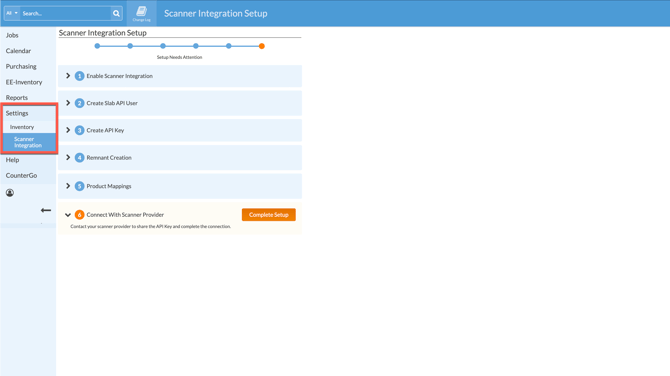
Are you ready to connect a slab scanner, like the Horus or Iris scanner, to your Legacy Inventory database? This allows you to import slab images and dimensions directly from your slab scanner into Legacy Inventory.
In your database Settings you'll find a guide to walk you through step by step.
There are two important parts to this setup, creating an API User and API Key specifically for scanner integration in Moraware, then contacting your scanner provider to give them the API Key you created in the setup steps.
There is a charge for adding an API User to your database, but they are not like regular Users. The API Key can not be assigned to a regular User. An API User does not get a login name and password and it does not login to your database the way a regular User does. It uses the API Key to connect the information from your scanner to your database. An API User does have a Change Log in Morware, which is useful if troubleshooting is ever needed.
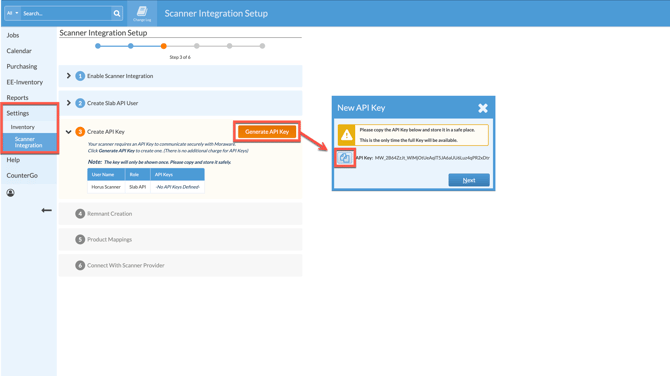
When you create the API Key be sure to use the provided copy button, or write the key down, when it is displayed. It is the only time you will see the full key. You will need to provide that API Key to your scanner provider.
If you move to the next step and do not copy the API Key, you can delete the key and create a new one under Settings > Users & Roles > API Users.
-
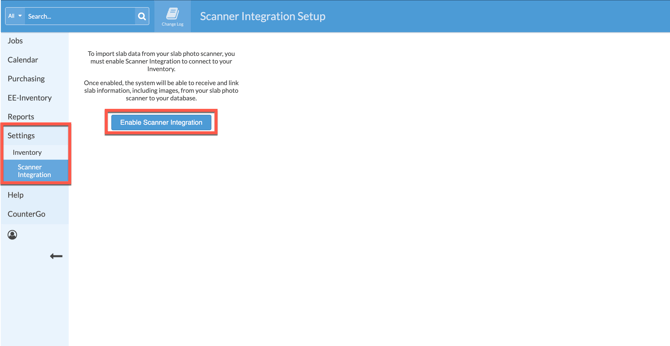
Go to Settings > Inventory> Scanner Integrations > click Enable Scanner Integration > confirm integration.
-
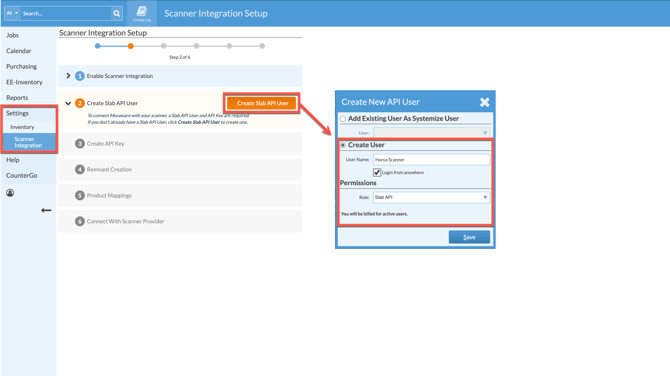
Select to Create Slab API User. We recommend using a name to match the function, like "Horus Scanner" > select Login From Anywhere > assign Slab API as the Role.
-
In Step 3, click the button to Generate API Key > use the copy button to copy the API Key and paste it into a safe place. It's also fine to copy the API Key manually and keep it in a safe place. This is the ONLY time you will see the full API Key.
-
After you have created and copied the API Key, click the button to Edit & Confirm in Step 4 to select how you want the integration to handle Remnants.
-
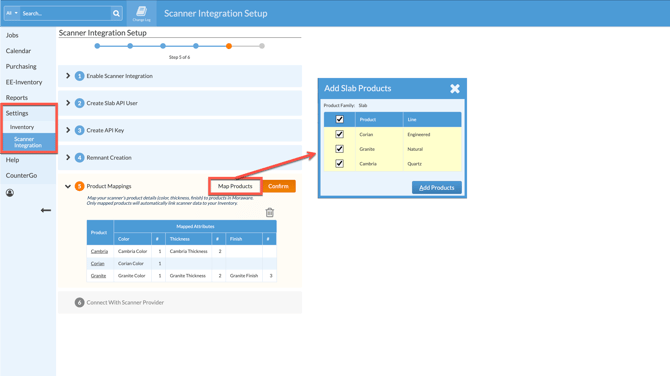
In Step 5, Map your existing Products by clicking on the Map Products button. Each Product will have to be mapped manually. After mapping each Product > Confirm Product Mapping.
-
Contact your scanner provider. Complete setup by confirming you have contacted your scanner provider in Step 6.