
Are you selling your business and your Moraware Systemize database along with it? There are a few steps you will need to take to ensure a smooth transfer. Be sure to update the billing contact and credit card before you remove yourself as an Admin User.
If you do not have the new company billing info, you can remove your billing information and leave empty for the new Admin to update.
Download any previous invoices in the billing portal before removing yourself as an Admin User.
After you have made these changes, reach out to us and we will double check that all information is correctly set for the changes. If you need help with any of these steps, email us at support@moraware.com, we're happy to go through the process with you.
SELLING BUSINESS & MORAWARE ACCOUNT
BILLING PORTAL: The billing portal is the place to start. Begin with updating the Company Address if necessary. Add a new Primary Contact, the new owner, then remove yourself. Finally edit the Payment Method to remove your current credit card.
- Go to Settings > Billing.
- Click on the Edit icon across from Company Address area to update if needed.
- Click the Add Contact icon to add an additional Primary Contacts. Delete the contact no longer needed.
- Click the edit icon across from Payment Method to edit the credit card used for payment. Delete the current card information. Enter a new card if applicable.
- Sign out from the Billing Portal via the icon in the upper right corner.

- Email us at support@moraware.com with the new Primary Contact's name, phone and email. Do NOT send any credit card information via email.
USER SETTINGS: Next you will need to create an Admin User for the new owner before removing yourself. It is not recommended to just change the name on your Admin login. Remember that will also change previous logs.
Create a new User, log in as that User to test, and deactivate yourself. This will retain a log of every User's work in the database before the transfer. The new owner can always delete these after the transition is complete, and they are not billed for deactivated Users.
- Go to Settings > Users & Roles > Users.
- Click on any Users who will also be leaving and Disable their access. The new owner will not be billed for disabled Users.
- Click the Create button from the top > add the new owner with an Administrator Role. Be sure to add an email address for them in case they need to recover their login.
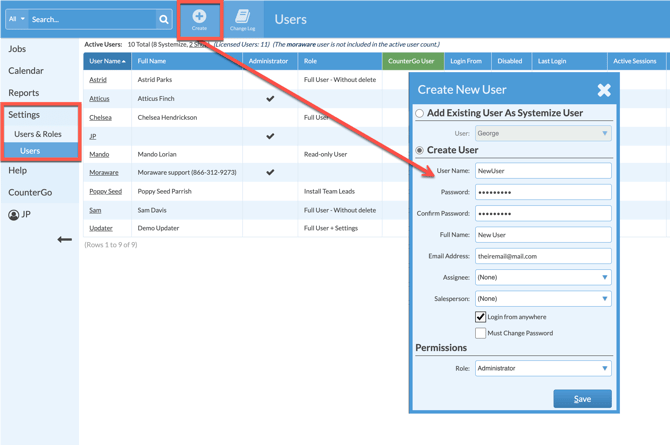
- Logout as yourself > login as the new Admin User > click your previous login name > check Disabled.
- Send the new login information to the new owner, and suggest that they change their password.
SELLING BUSINESS - CANCELING MORAWARE ACCOUNT
When leaving Moraware you have the option to cancel your account entirely, or archive your database. Email us at support@moraware.com to move forward with either, or to learn more about the options. We must verify any cancellation or archive with the primary account holder before proceeding.
The new owner will need to reach out to Sales at sales@moraware.com to get started with a new database.