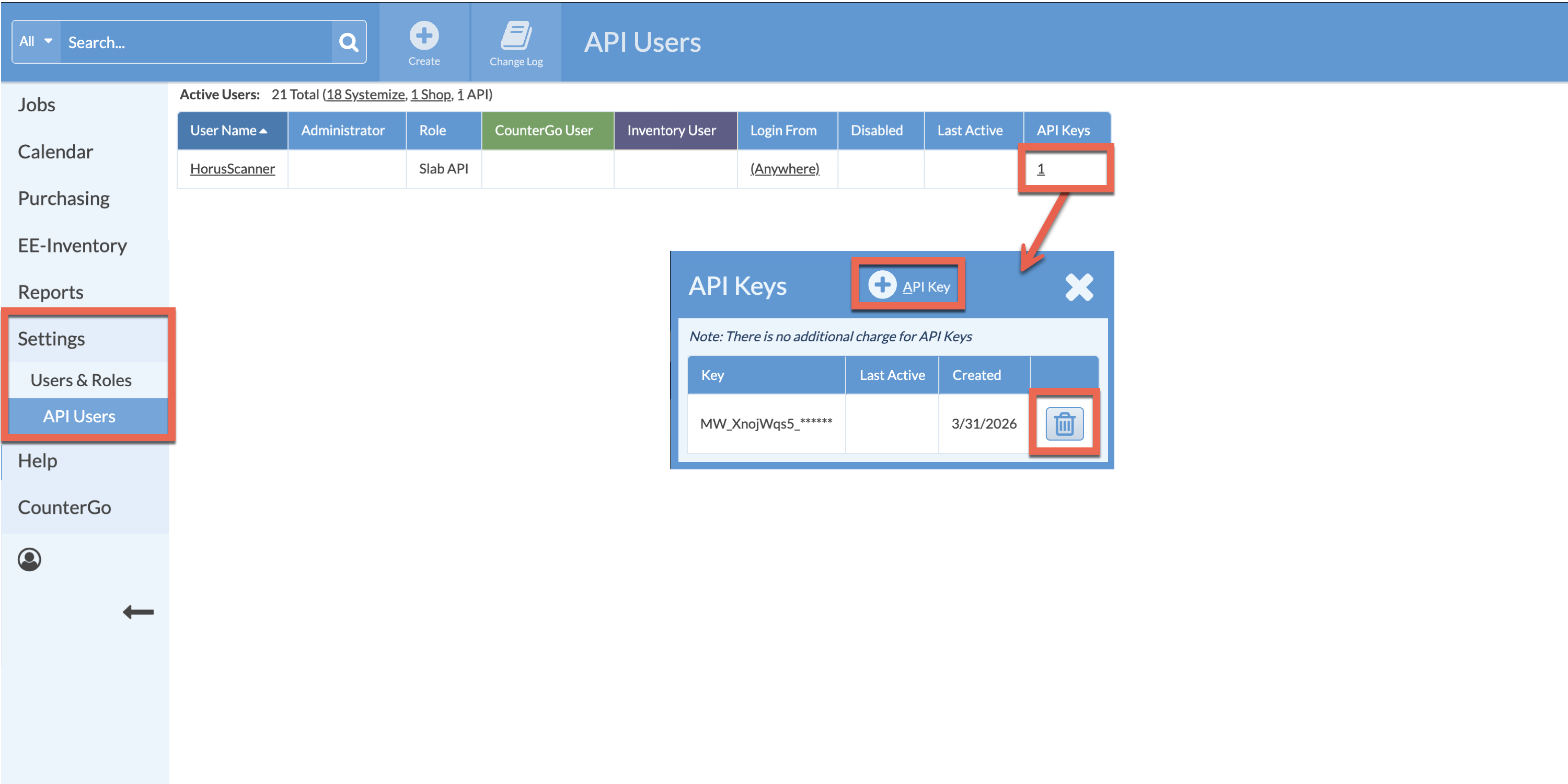
Need to make changes to an API User or create a new API Key? Manage your API Users and Keys in the API Users section under Settings > Users & Roles.
API Users are different from regular Users, they don't use a login name and password and access your database. They use an API Key to move information into or out of your database in a secure way.
When creating API Keys, they are only displayed in full when they are created, like when setting up slab scanner integration. That full API Key is necessary to provide to the third parties to complete any integration. Sometimes you may forget to copy the Key, paste it somewhere safe, or write it down. You can remove an API Key and create another at any time.
Best practice is to have a dedicated API User for each integration, which usually means only one API Key per API User. It is also recommended to name the API User so it is easy to recognize which integration it is for, like "Hours Scanner" for a slab scanner integration.
If you remove and API Key and create a new one, be sure that API Key is not currently in use before you do.
You can have one API User with numerous API Keys for different integrations. But each unique integration has one API Key. Each API User has it's own change log, which can be useful if you need to troubleshoot. When assigning multiple API Keys to a single API User, keep in mind the Change Log is for the API User, you will need to determine which actions correspond to which API Key.
CREATE AN API USER
-
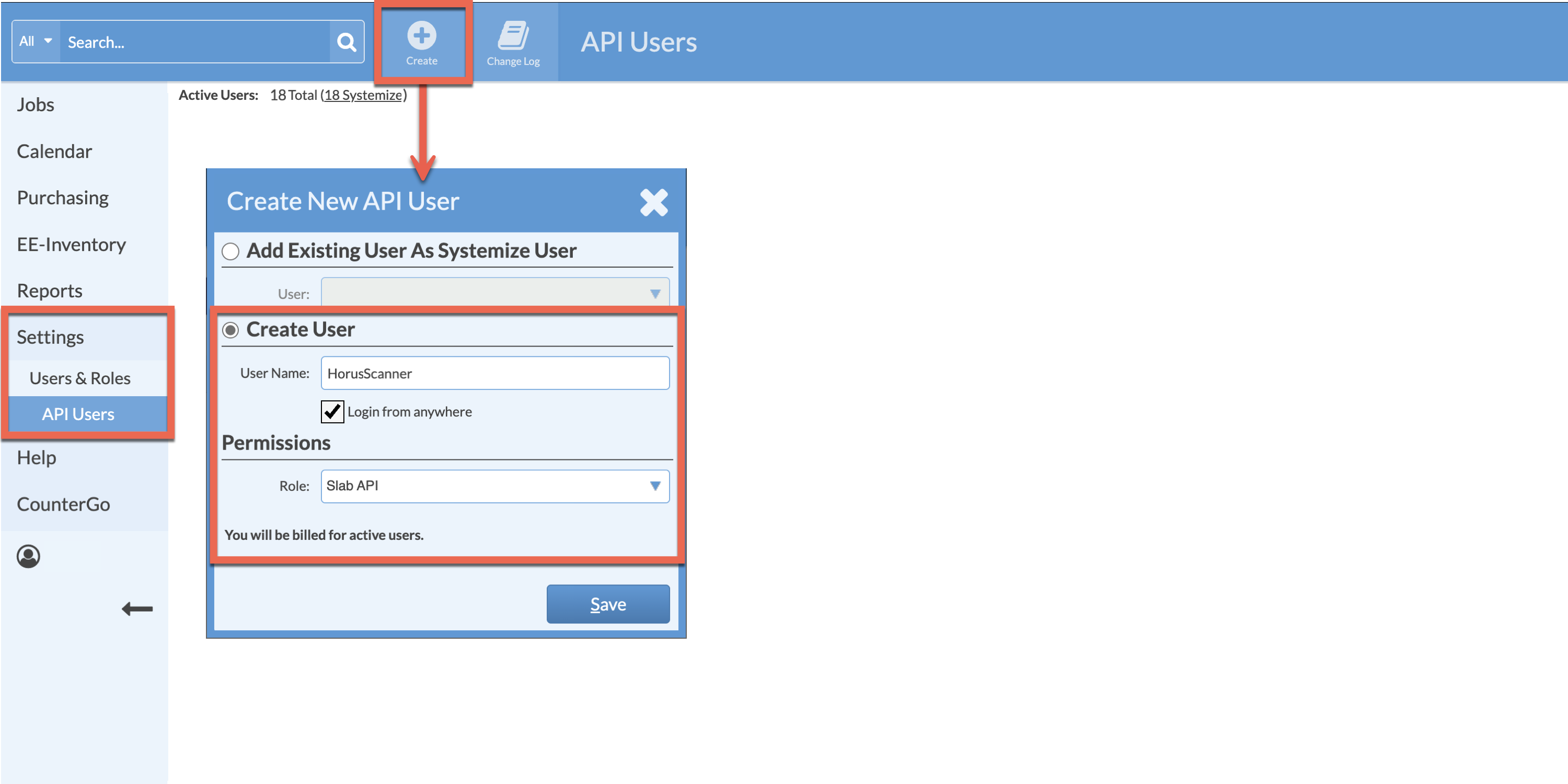
Go to Settings > Users & Roles > API Users.
-
Click the Create button > enter a Name > select a Role.
DISABLE OR DELETE AN API USER
-
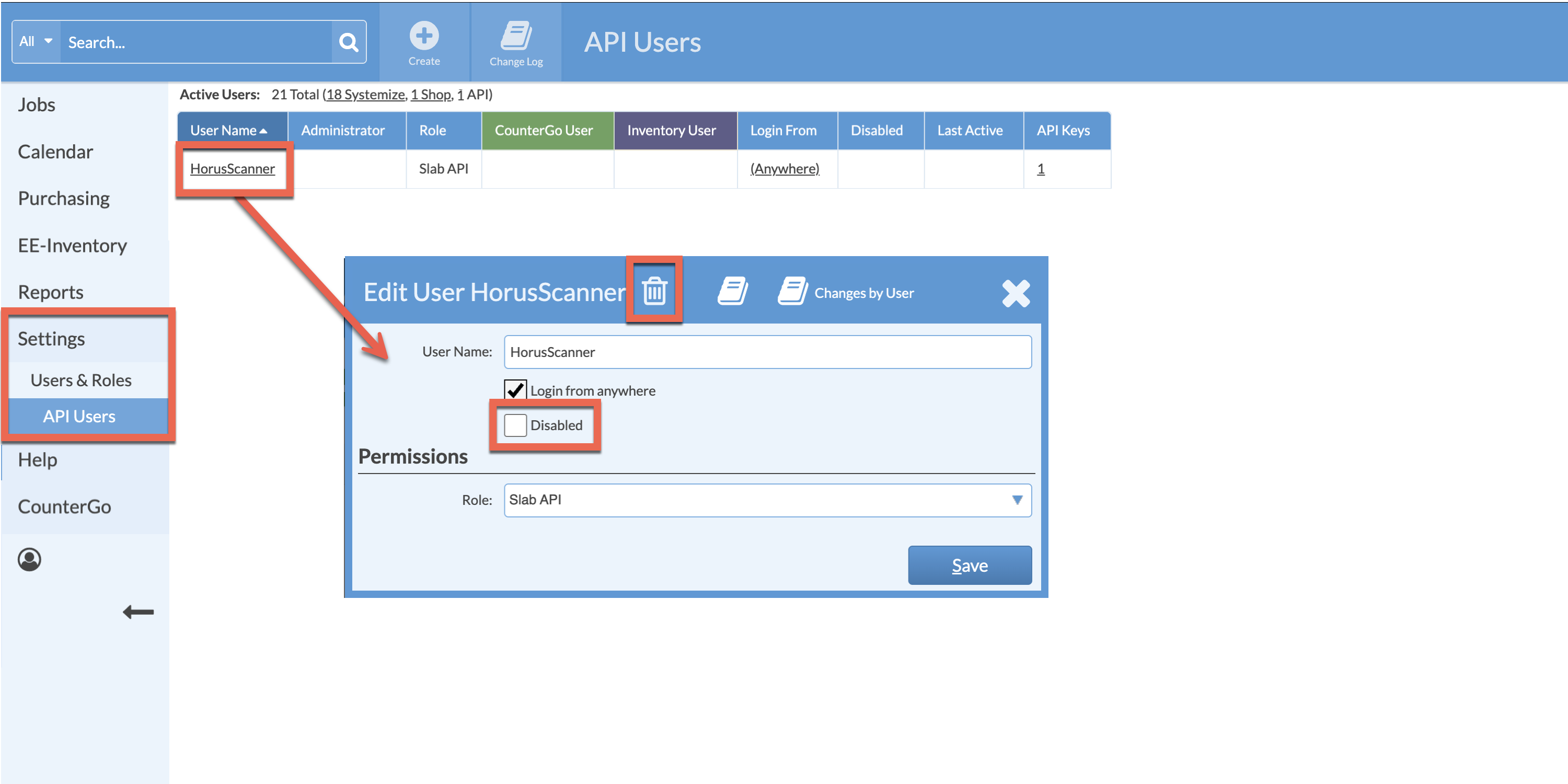
Go to Settings > Users & Roles > API Users > click on the API User to edit.
-
Check the Disabled box to suspend the API User's ability to access your database. You are not billed for inactivated API Users. This will allow you to activate this API User again in the future without having to create a new API Key. This is recommended if a temporary pause of the API User is needed.
-
Click the Delete icon in the top menu bar to permanently remove the API user. Please note this is a permanent action and cannot be undone.
CREATE OR DELETE API KEYS
-
Go to Settings > Users & Roles > API Users > click on the underlined number of Keys.
-
Click the Create API Key icon in the top menu bar.
-
Click the Delete icon next to any API Key to be removed.