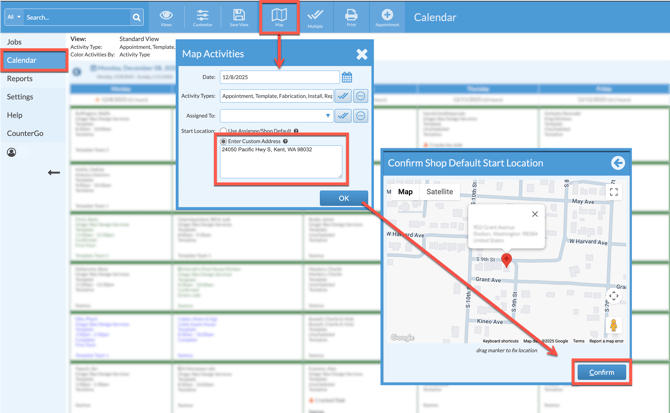
Wondering what the options are for setting the start location when mapping Activity routes from the Calendar? There are three options to use as a start location.
An Assignee Address, the Shop Default Start Location, or a one-time Custom Address are available to use as the start of the Activity routes.
Mapped routes will use an Assignee address first if one has been entered. If multiple Assignees are being mapped, each Assignee's route will begin from the saved Assignee Map Start Location.
If no Assignee addresses have been entered, routes will be mapped automatically from the Shop Default Start Location if one has been saved. If no Shop Default Start Location has been entered, Systemize will map without a Start Location unless a Custom Address is entered.
Entering a one-time Custom Address will ignore both saved Assignee addresses and the Shop Default Start Location and map all routes from the entered Custom Address.
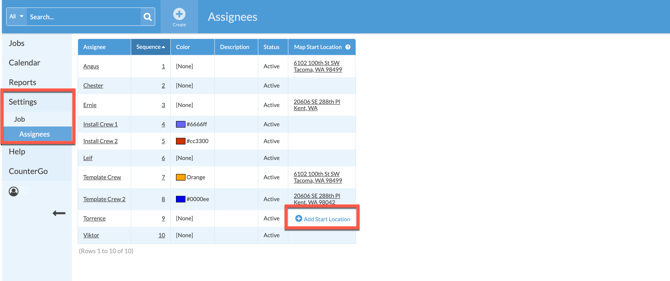
ASSIGNEE ADDRESS
- Go to Settings > Job > Assignees.
- Click in the Map Start Location column for any Assignee to add their default start address.
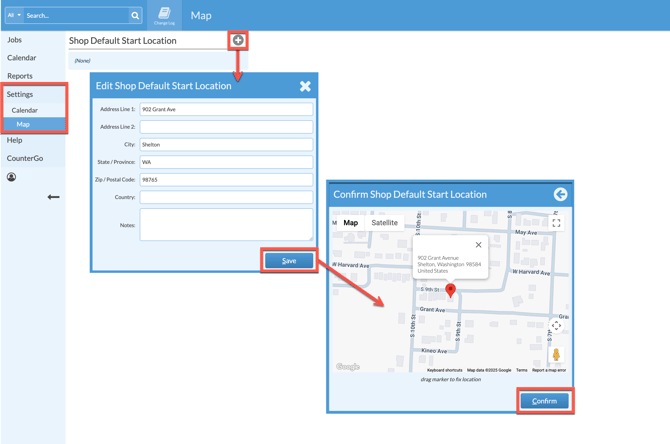
SHOP DEFAULT START LOCATION
- Go to Settings > Calendar > Map.
- Click the Add icon > Enter a new address.
- Save > Confirm the address.
ONE-TIME CUSTOM ADDRESS
- From any Calendar View > Click the Map button.
- Select Enter Custom Address > Confirm the location.