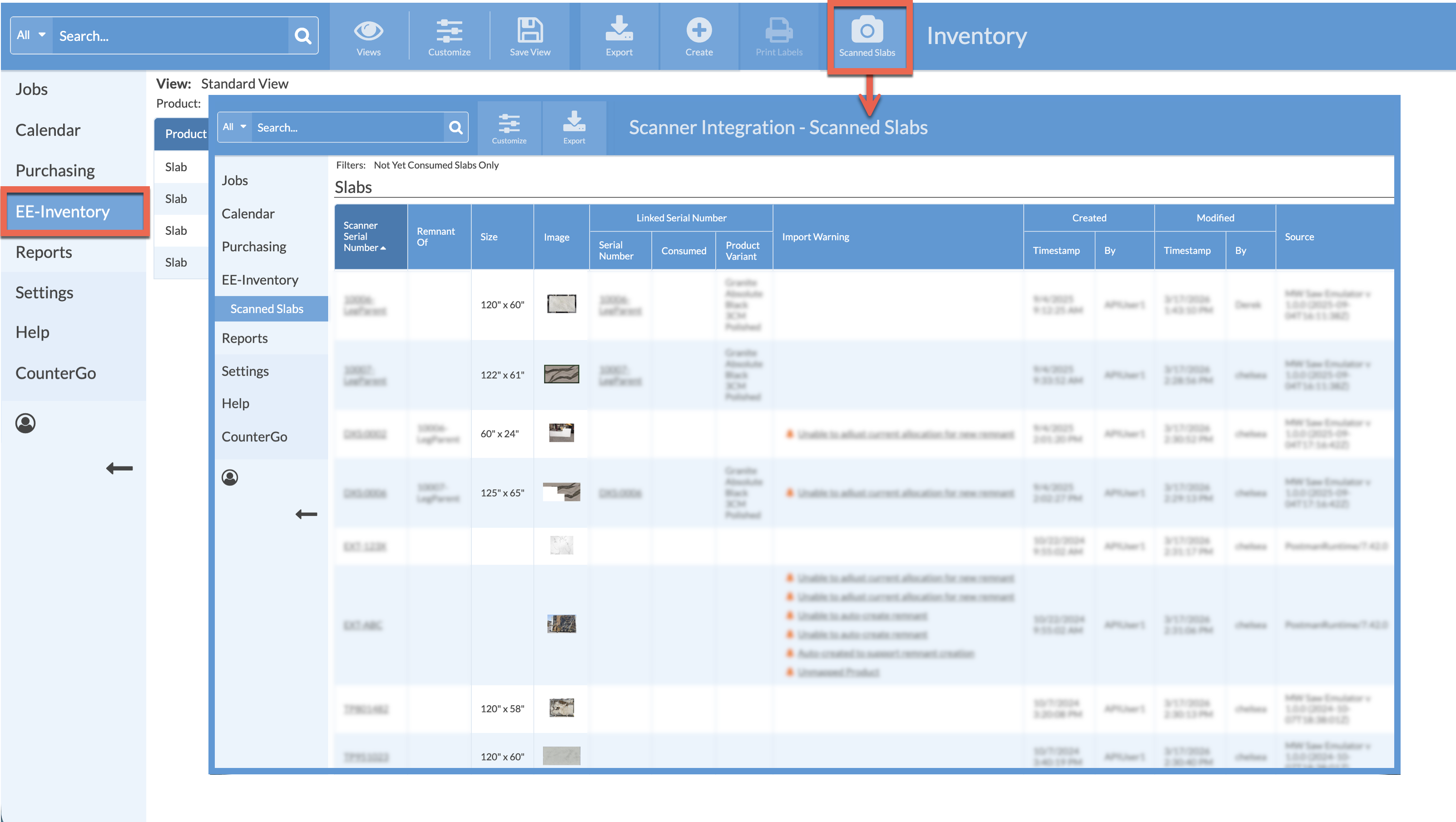
Legacy Edition Inventory offers an API integration to connect both Horus and Park slab scanners to your database. After creating the Slab entry in Legacy Inventory and assigning it a Serial Number, you will not have to enter that data again in the slab scanner. The slab scanner will use the Serial Number created in Legacy Inventory to send the slab image and dimensions over to your database. Let's talk about how this works and what you need to do to connect up your scanner.
This article provides a broad overview. The knowledge base has individual articles and videos for step-by-step instruction.
API USER & API KEY
The first steps you will need to take are creating a Systemize API User and API Key in Legacy Inventory. The API User is not the same as a regular User, though there is a charge for adding an API User.
API Users can not log into your database the way a regular User does. You will assign them a specific set of Scanner Integration Permissions when assigning the Role. An API User does not have a login and password, it uses the unique API Key for the scanner to talk with your Moraware database.The actions of an API User is logged the same way a regular User is, having a dedicated scanner API User will track it's activities and help troubleshoot if needed.
CREATE AN API USER AND API KEY
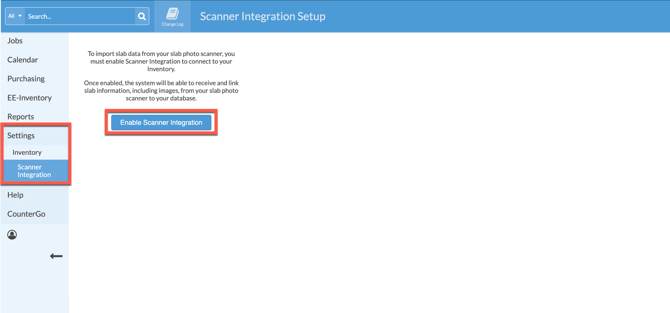
Under Settings > Scanner Integration you will find the steps to create an API User and API Key all in one place. You can manage your API User under Settings > Users & Roles > API Users. You can remove keys and add new ones to the API User under API Users. Once an API User is created, you'll find a specific Role called Slab API.
CONNECT TO YOUR SCANNER
As you go through the setup steps under Settings > Scanner Integration, when the API Key is displayed after creating it, be sure to copy it with the provided copy button, or write down the key and keep it in a safe place. You will need to provide that key to your scanner provider. The full API Key is only displayed in the step where it is created, it's very important to copy it then.
If you forget to copy the API Key in the step where it is displayed, it can be removed and a new Key created under Settings > Users & Roles > API Users.
You will need to contact your scanner provider to finish the scanner integration. It is not possible to connect through Moraware without contacting your provider.
REMNANTS
When setting up Scanner Integration under Settings > Scanner Integration, there are two options for handling remnants. By default Do Not Auto-Create is selected. To have Remnants automatically created when scanned, select to Auto-Create and Confirm. If you are not sure, you can return to this step at anytime, click on Step 4 of the Scanner Integration, and change your selection.
Using Auto-Create for remnants will allow for the scanner to send all the data and image of the remnant, along with a link to the parent slab, to Legacy Inventory.
DISABLE THE SCANNER INTEGRATION
At any time the scanner integration can be disabled by going to Settings > Scanner Integration > Step 1 Enable Scanner Integration. Simply select Disable Scanner Integration under the Status. If you are planning to turn off the integration permanently, delete the API Key and API User under Settings > Users & Roles > API Users.
If you are switching scanners or planning to restart, you can use the same API User, but a new API Key will be required. The old key can be deleted and a new one created under Settings > Users & Roles > API Users.
PRODUCT MAPPING
Because Legacy Inventory is highly customizable, Users need to map the attributes for their Inventory Products when integrating a slab scanner.
Only Products that have been mapped will automatically link from the scanner.
During the Scanner Integration setup, there is a prompt to Map Products. Users can map Color, Thickness, and Finish to the corresponding attributes they have defined in their database. The Product and Attribute data pulls directly from Settings > Inventory > Products.
Each Attribute is optional and can be left blank if there is not a matching Product Attribute already defined. This process will need to be repeated for each Product that will be scanned. After each Product is mapped, the dropdown will indicate which have been completed.
Return to the Scanner Integration setup at any time and add new Products or adjust mappings as they change.
USING THE SCANNER INTEGRATION
After you have created an API User, an API Key, and provided those to your scanner provider, it's time to use the integration. It does matter what order you scan and create the Slab entry. Your scanner will rely on the Serial Number in Morware Inventory to match up the image and dimensions and send them to your database.
Create your Slab in Legacy Inventory first, filling in information like Serial Number, Material, Color, Thickness, Finish, Location, and Batch Number.
The Serial Number is the most important piece of data to create. The scanner will not be able to send information over correctly if there is no Serial Number created in Legacy Inventory first.
Once the information is created in Legacy Inventory, you will not have to re-enter all of it into the slab scanner, only the Serial Number is needed.
When a slab scanner is integrated with your database a Scanned Slabs button will appear in the top navigation on the main Slabs View. Click to quickly display all scanned Slab information.