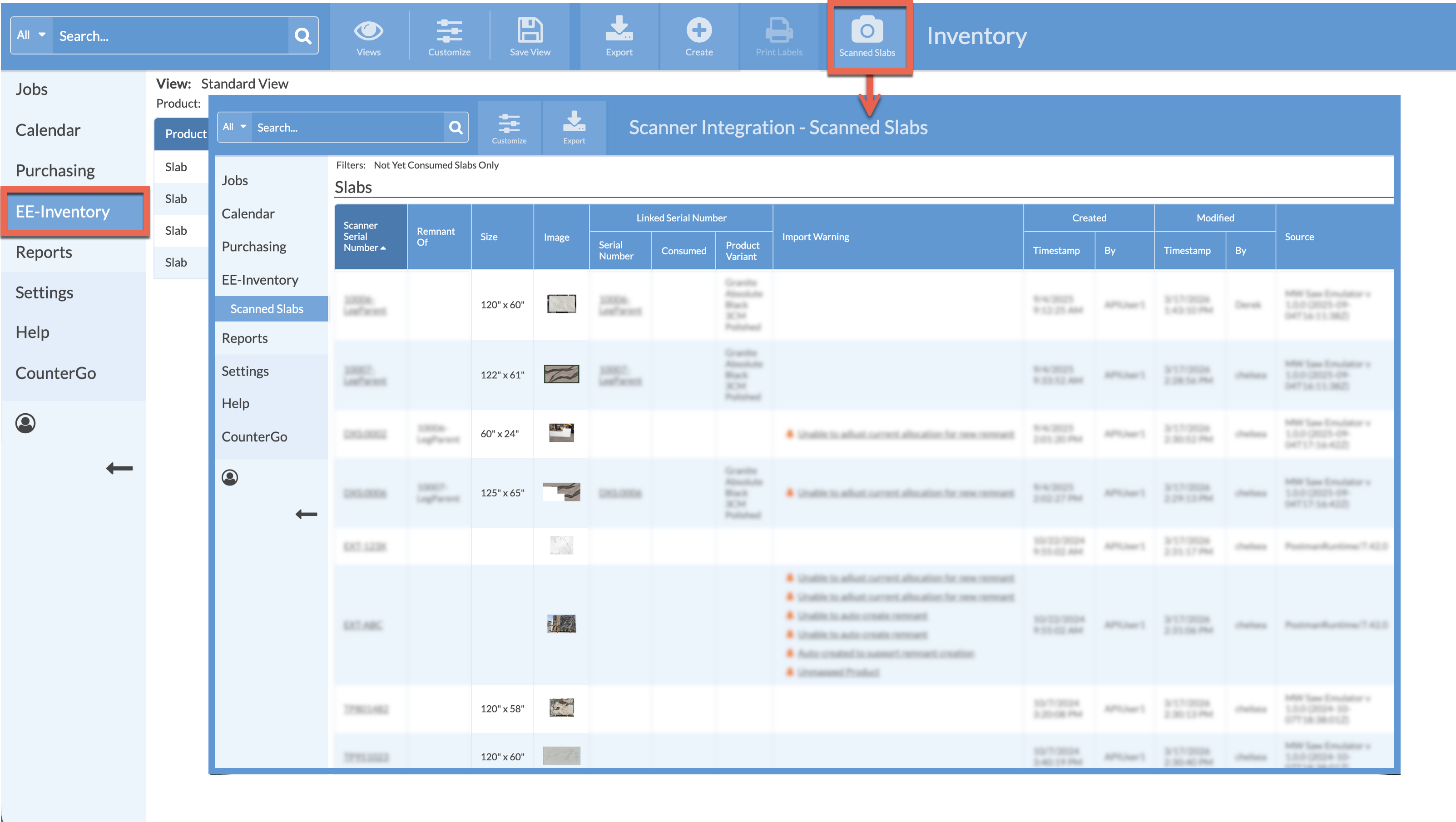
When a slab scanner is integrated with your database a Scanned Slabs button will appear in the top navigation on the main Slabs View. Click to quickly display all scanned Slab information.
In the Scanned Slab View, there is one row per imported scanned Slab.
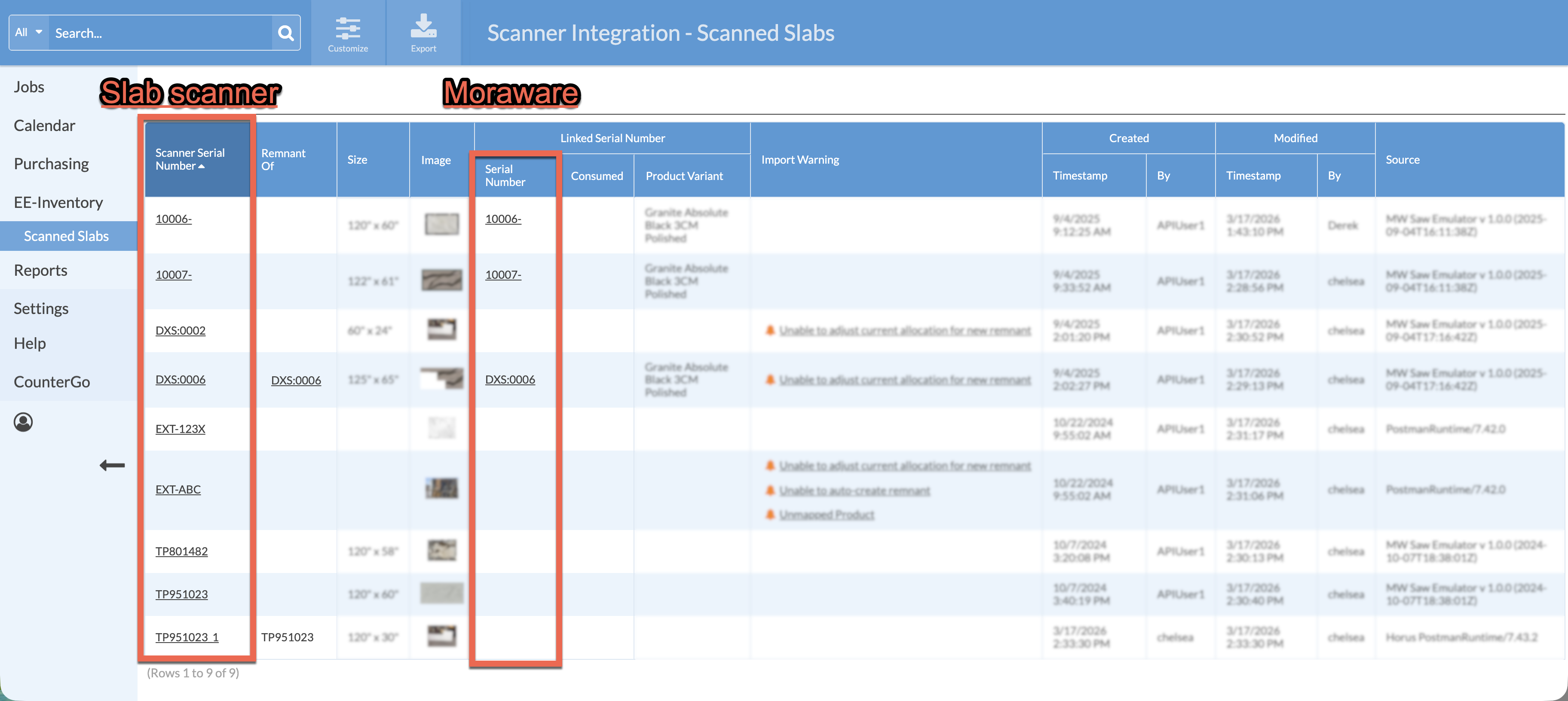
Scanned Slabs are linked based on unique Serial Numbers created before scanning, in Legacy Inventory. The Serial Number entered in the scanner must match the Serial Number of a Slab in Moraware in order for the auto-import to link the scanned image with the Slab entry that was created in your Moraware database. Serial Numbers entered in the slab scanner are the first column displayed in a Slab View.
The Serial Number column under Linked Serial Number is the original Serial Number created in your Moraware database.
Columns display when the Slab was scanned and imported, by which User, and any edits that are made. The Source column identifies the integrated scanner itself, not the associated API User.
The Linked Serial Number sub-columns and Import Warning column will indicate imported images and data from the scanner, as well as indicate any issues with linking the scanner information with the Slab entry in Legacy Inventory.
If the Linked Serial Number column is blank for an entry, the matching Serial Number in Legacy Inventory was not found and the information from the slab scanner was not linked to the entry in your database.
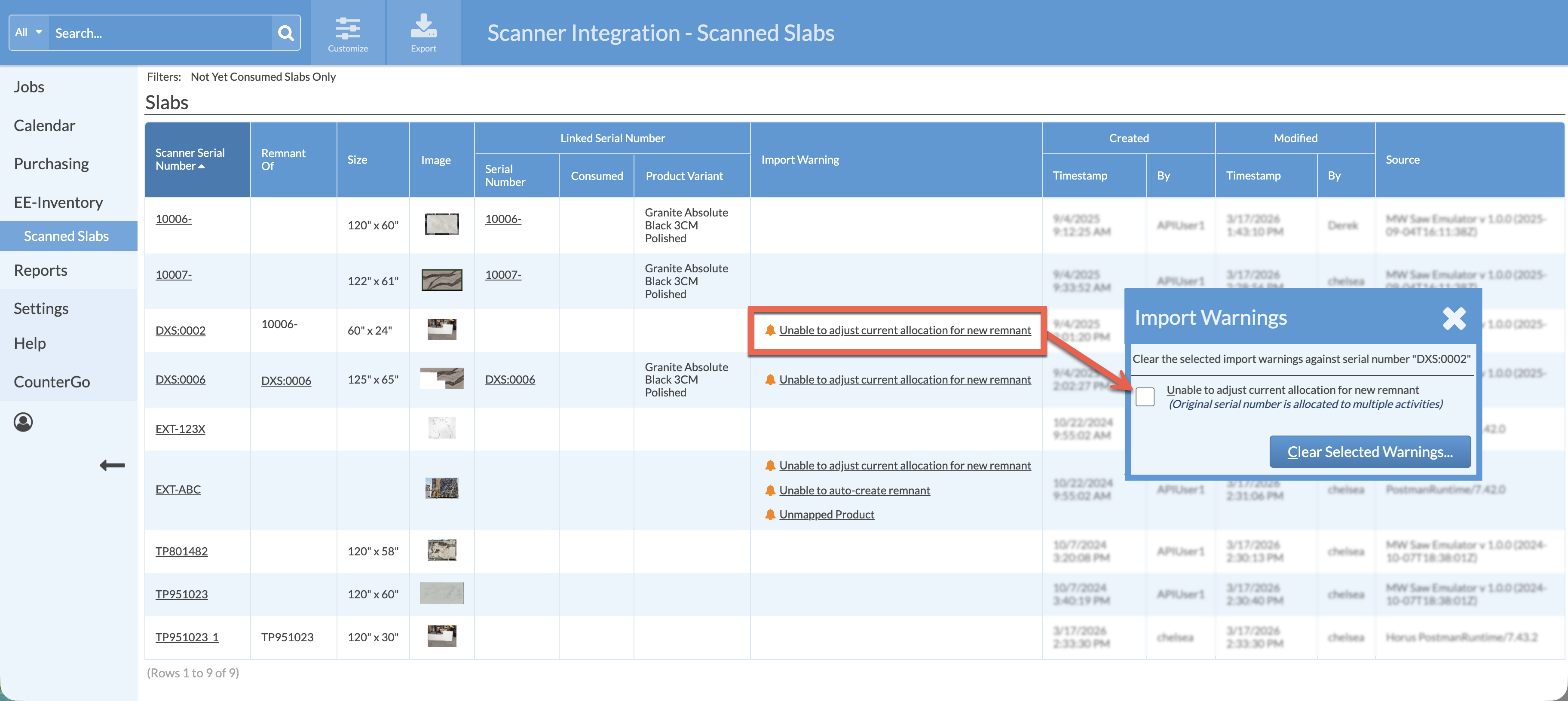
The Import Warning column will alert you to any import issues. Click on an underlined warning for more information on how to resolve the issue. Check the box next to the warning to clear it once it has been resolved. Clearing a warning will remove it from the Import Warning column.